Forge
Back to Start Here
§ Start Here · Walkthroughs
Account Setup
April 2026
Account Setup. Make it yours.
1 / 4
app.runonforge.us / settings / profile
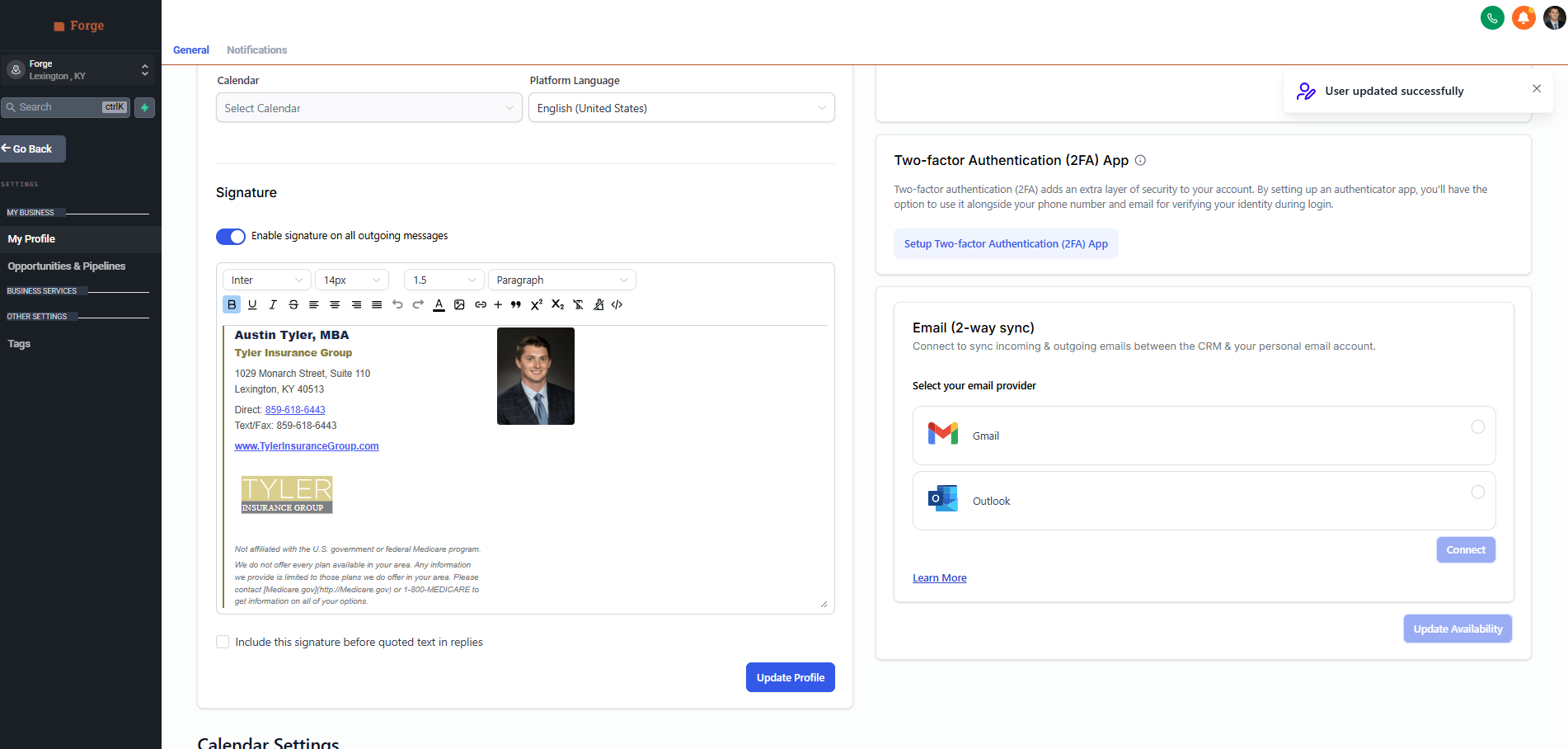
My Profile page with the signature editor highlighted
Signature card
My Profile · Signature card
Step 01 / 04 Set signature

Settings, bottom-left. Then drop your signature in.

From the dashboard, click Settings at the bottom of the left nav rail. You land on My Profile. Scroll to the Signature card. Paste in the signature you already use (Outlook, Gmail). Click Update Profile to save.

Save Update Profile (bottom-right of card)
No signature yet? Ask your manager. They can help you put one together. Don't skip this. The signature is what makes every email feel like it came from a person.
Why first A signature-less email from a CRM is the fastest way to look like a robot. Set this once, then forget it.
app.runonforge.us / settings / profile
My Profile page with the Enable signature on all outgoing messages toggle highlighted
Enable on all messages
My Profile · Toggle row, top of signature card
Step 02 / 04 Toggle on

Flip the toggle. Every email signed automatically.

Same card, top of the editor. Toggle on Enable signature on all outgoing messages. Click Update Profile to save.

Toggle Enable signature on all outgoing messages
Recommended Turn this on. Every outgoing email then carries your signature automatically. One less thing to remember on every send.
Why this matters Forge sends dozens of emails on your behalf. All of them deserve to look like you.
app.runonforge.us / settings / profile
My Profile page with the Email two-way sync card highlighted on the right column
Email · 2-way sync
My Profile · Email (2-way sync), right column
Step 03 / 04 Email · 2-way sync

Connect your email. Stop switching tabs.

Same page, right column. Find Email (2-way sync). Pick Gmail or Outlook, whichever one you actually use. Click Connect and authorize.
Click target Connect (Gmail or Outlook)
What you get Every email you send from inside a contact lands on the timeline. Every reply they send back routes into Forge automatically. The contact record becomes the source of truth.
Why this matters An unsynced agent loses the email half of the conversation. Six months later, you cannot remember what was said and the prospect can.
app.runonforge.us / calendars / connections
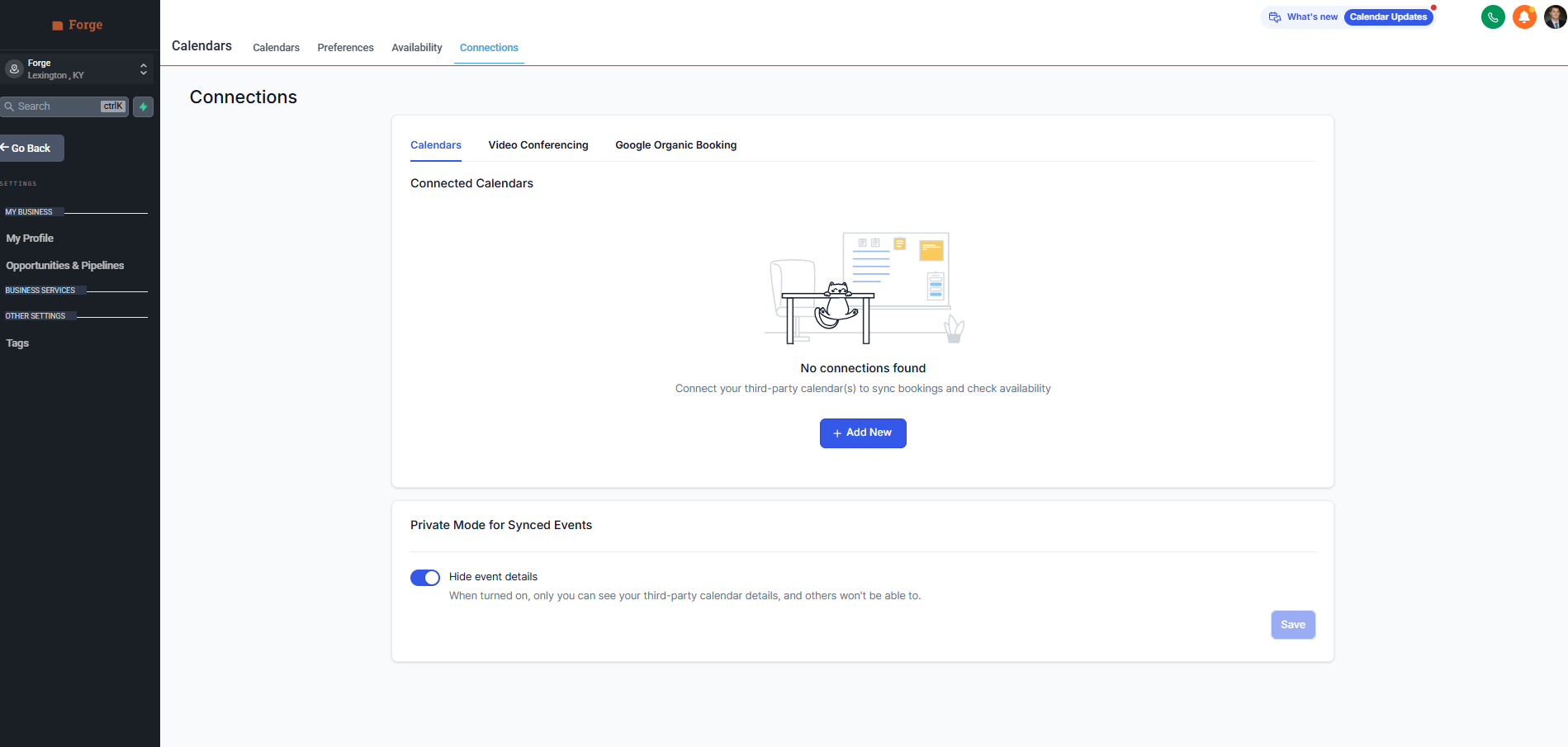
Calendars page on the Connections tab showing the empty state with an Add New button
Calendars · Calendar Settings · Connections
Step 04 / 04 Calendar

Connect your calendar. One source of truth for your time.

Different page this time. Click Calendars in the left nav rail. Up top, click Calendar Settings, then Connections. Click + Add New and connect Google or Outlook.

Click target + Add New (Connections tab)
What you get Appointments booked through Forge route to the calendar you live in. No more double-booking. No more missed meetings because something lived in one calendar and not the other.
Why this matters A missed appointment is a lost relationship. Connect once, sync forever.
Walkthrough · Complete

That's the home base.

Your signature is set, your email is synced, your calendar is connected. The system stops feeling like someone else's software and starts feeling like your desk.

Five minutes here saves you from a hundred small frictions in the next year.
Next: Mobile App
01Set signature
02Enable on all messages
03Sync email
04Sync calendar