Five steps. About eight minutes. The phone in your pocket becomes the lead alert that wakes the work.
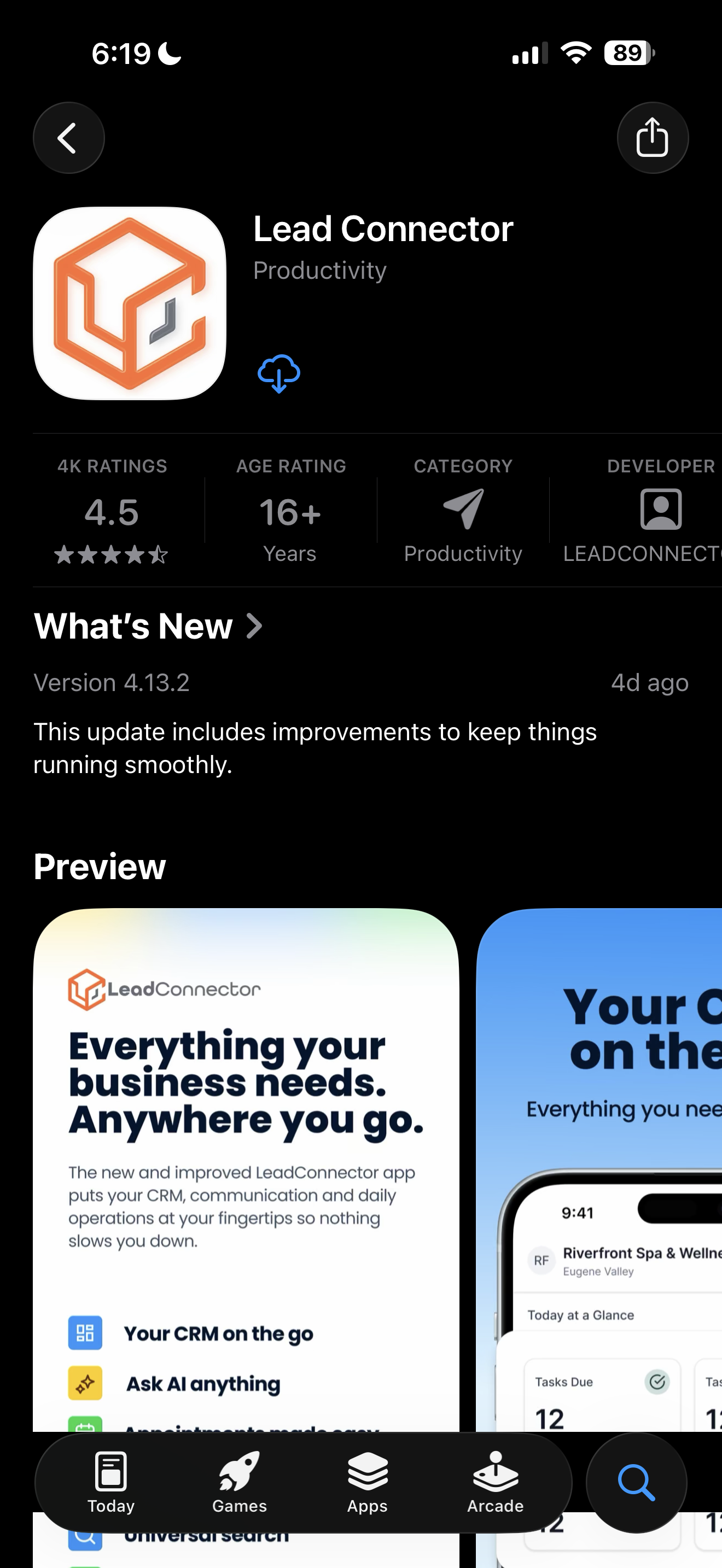
Find Lead Connector in the App Store.
Open the App Store and search Lead Connector. You want the listing by LeadConnector LLC, listed under Productivity. The icon is the orange hexagonal LC mark. Several look-alikes share the name. Match the developer field exactly.
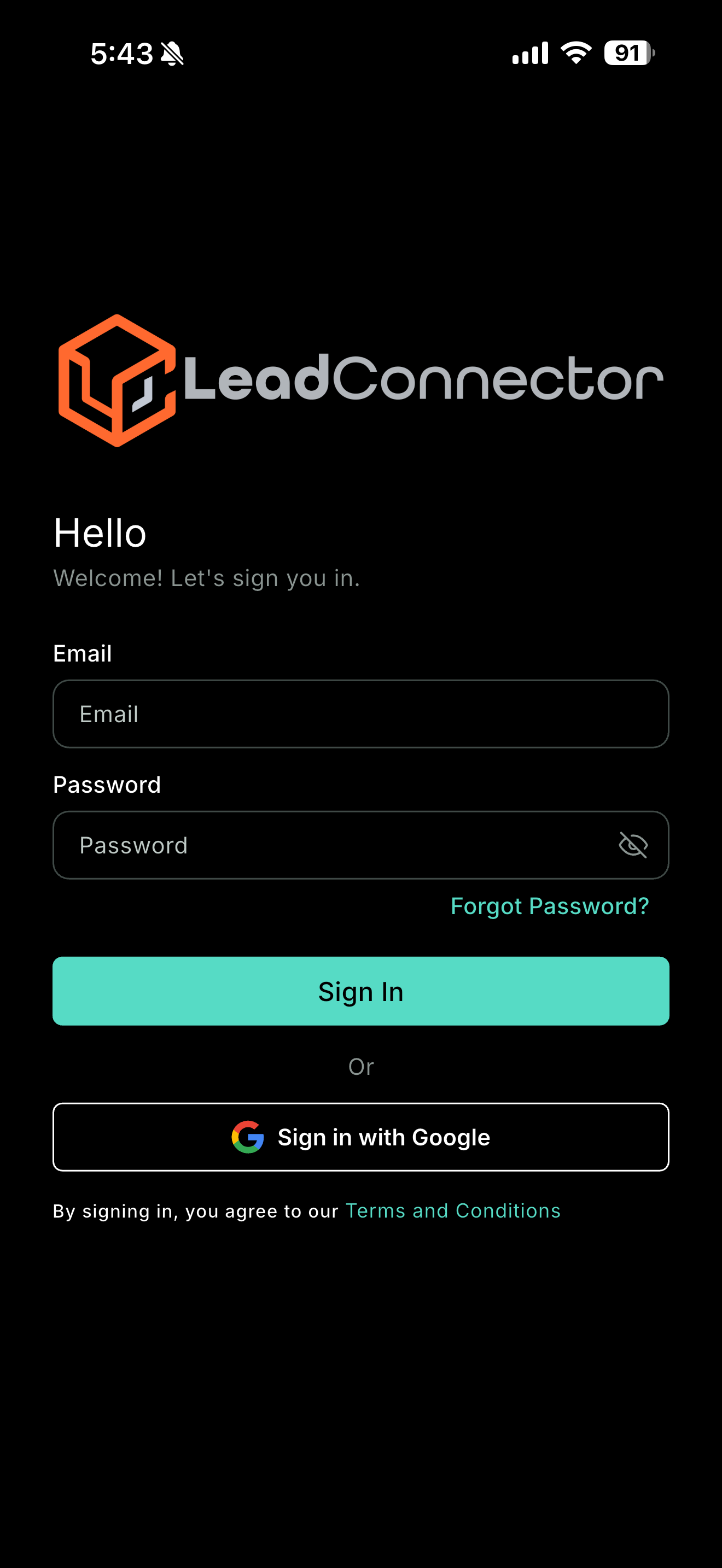
Sign in with your Forge credentials.
Open the app. Sign in with the same email and password you use for Forge on desktop. Use the email-and-password fields, not Sign in with Google. If your password does not work, reset it from the desktop login at app.runonforge.us first, then come back to the app.
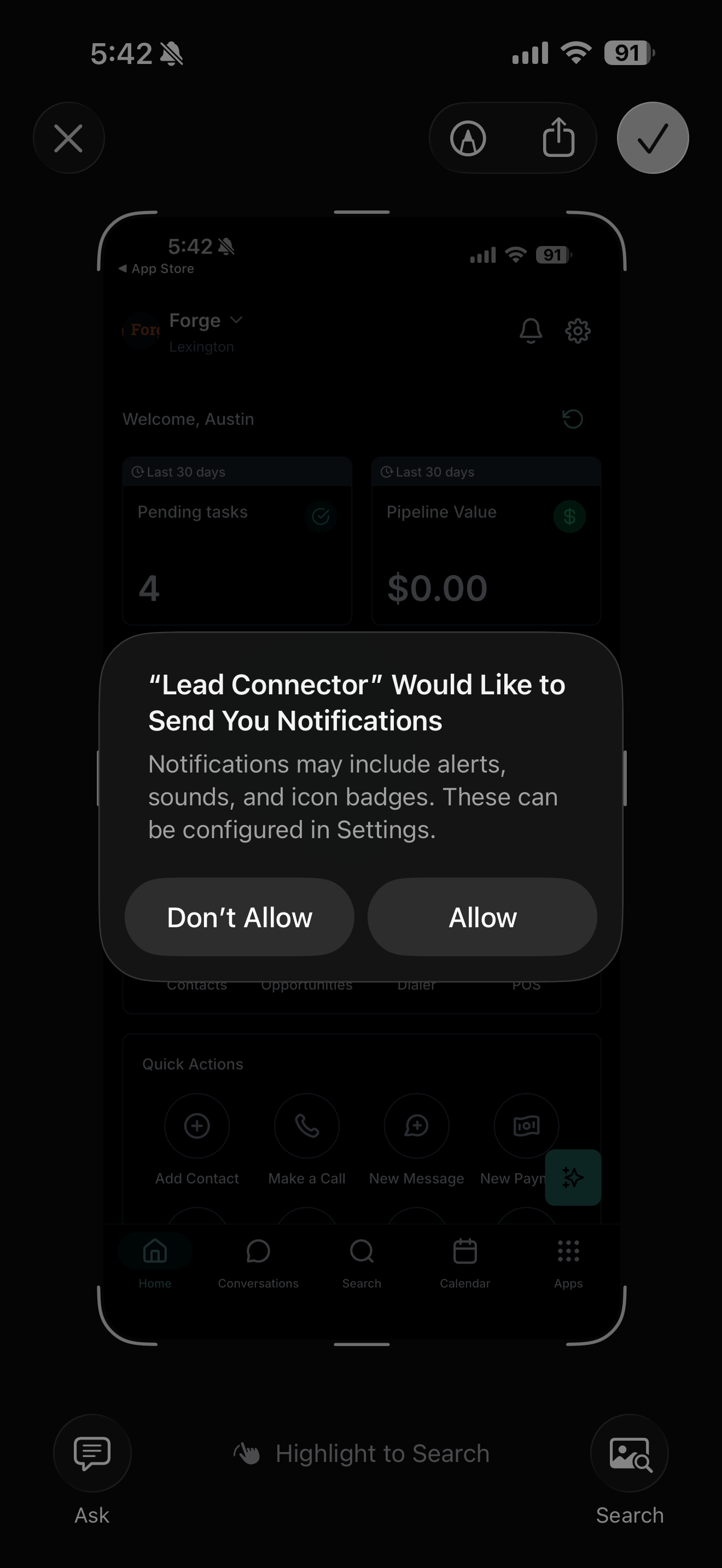
Allow microphone access.
You will see a system prompt asking the app to access the microphone. Tap Allow. This is required for outbound calls through the dialer and for call recording.
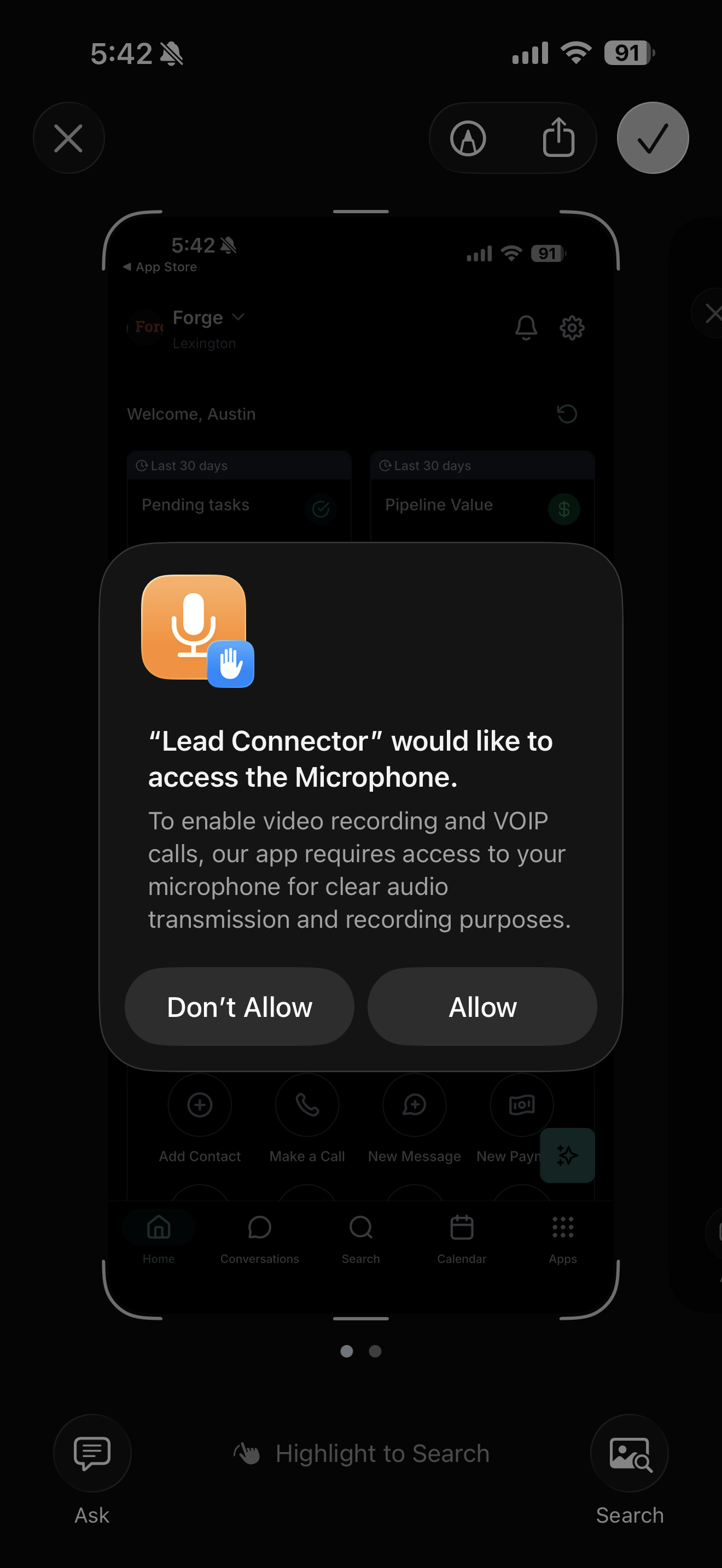
Allow notifications.
A second system prompt will ask permission to send notifications. Tap Allow. You can fine-tune the alert style later in iPhone Settings, but the master toggle has to be on.
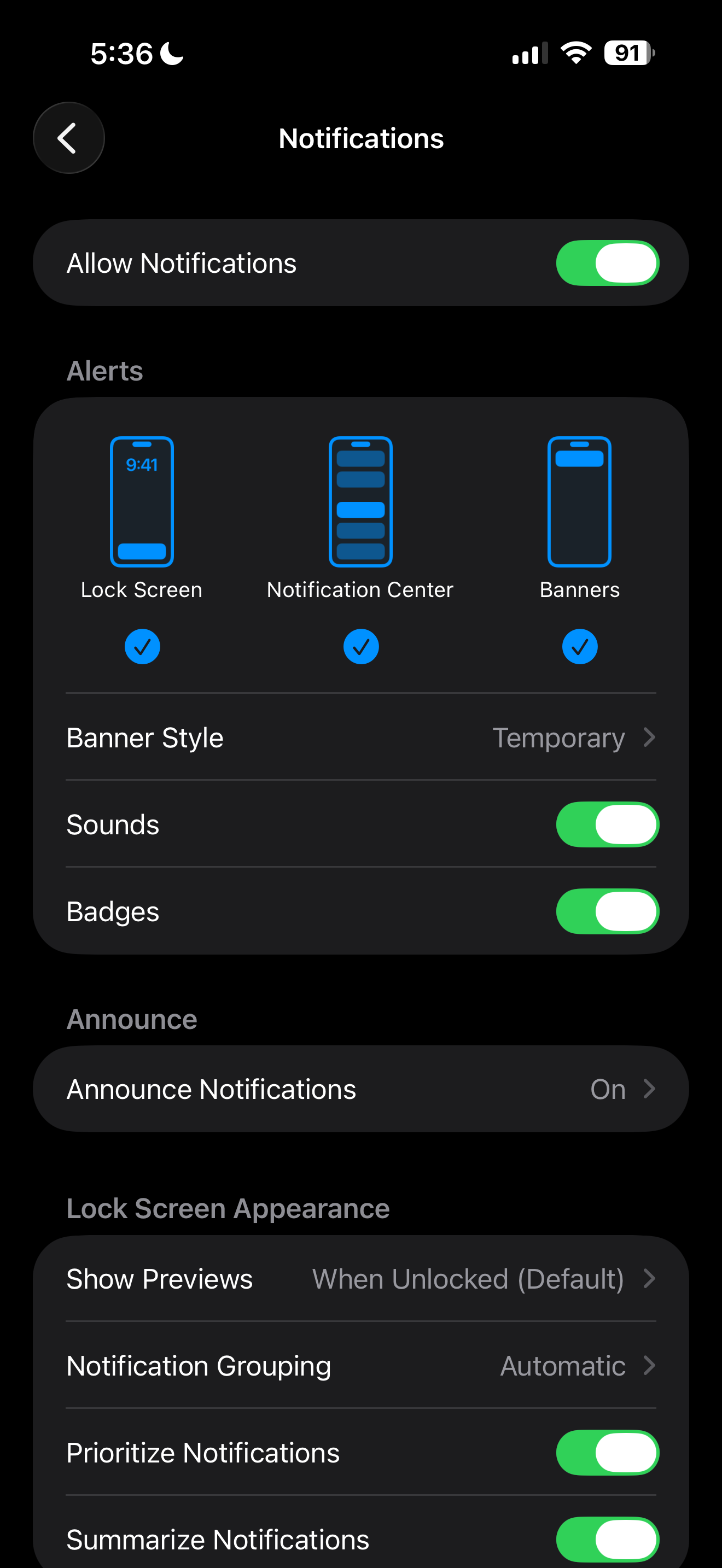
Verify your notification settings.
Leave the app. Open iPhone Settings › Notifications › Lead Connector. Confirm every item below is on. If any one is off, you will miss leads, and you will not know it.
You're set up.
The app is installed, signed in, and configured to wake your phone the moment a lead lands.
The first agent to a fresh lead wins it. Your phone is now in the conversation before the lead has finished filling out the form.