Forge
Back to Start Here
§ Start Here · Walkthroughs Contact View April 2026
Contact records. Anatomy and navigation.
1 / 8
app.runonforge.us / contacts / smart_list / All
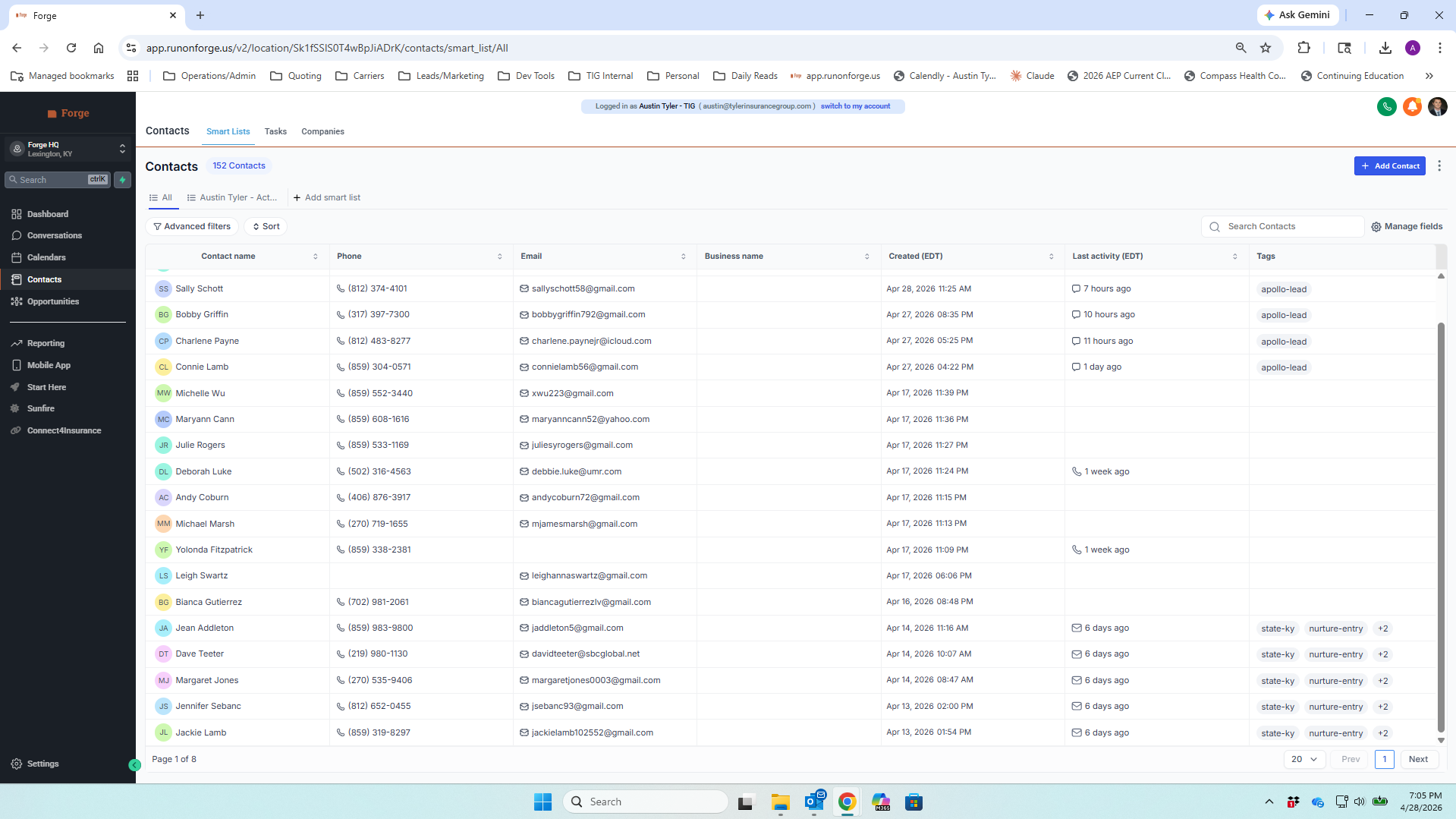
Forge contacts list showing 152 contacts with name, phone, email, created date, last activity, and tag columns
Forge · Contacts · Smart Lists
Step 01 / 08 The list

Your whole book of business. One list.

Every contact you have, in one searchable place. Sortable by name, by last activity, by created date. Filter by tag, by smart list, by anything you put on a contact. Type a name in the search box and you are there.

Replaces The four spreadsheets, the carrier portals, the printed lead sheets in the manila folder on your desk.

Click any row. That's the contact. That's where the rest of this walkthrough lives.
app.runonforge.us / contacts / detail / Maryann Cann
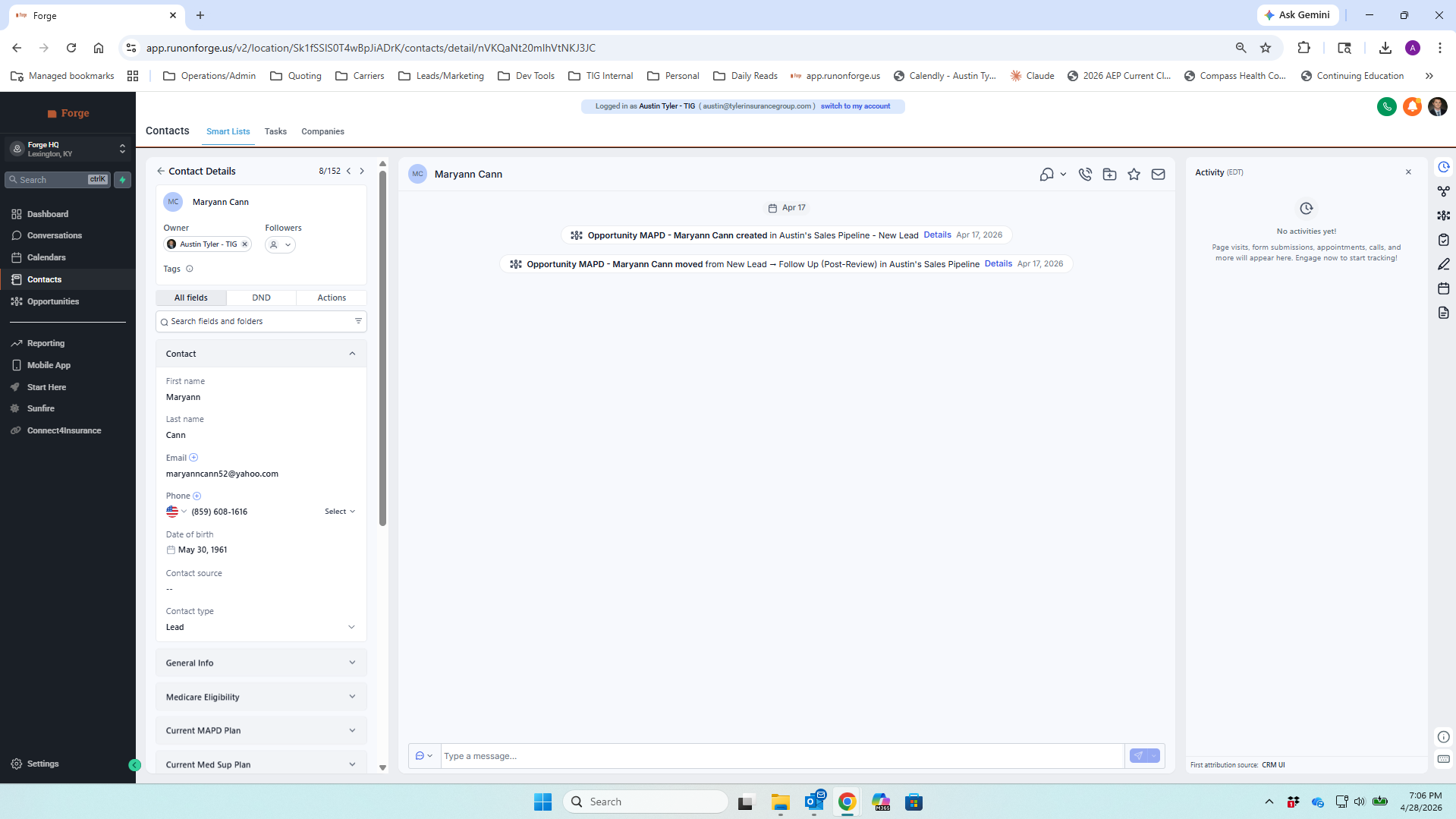
Contact detail view for Maryann Cann showing left details panel, middle activity feed, and right activity sidebar
Forge · Contact detail · Three panels
Step 02 / 08 Layout

Three panels. One prospect. The structure that holds the chaos.

Open any contact and you land here. Read it left to right.

Left Who they are. Name, phone, DOB, email, plan info, every detail you used to keep on a sticky note or in a separate spreadsheet. All here. Always here.
Middle What's been said. Every text, every call, every email, every note, every stage change, in order. The story of this prospect on one screen.
Right Where you act. Tasks, notes, documents, email. The things you actually do, parked one click away from the conversation.

Left tells you who they are. Middle tells you what's been said. Right is where you act. Learn that and the rest of this walkthrough is just buttons.
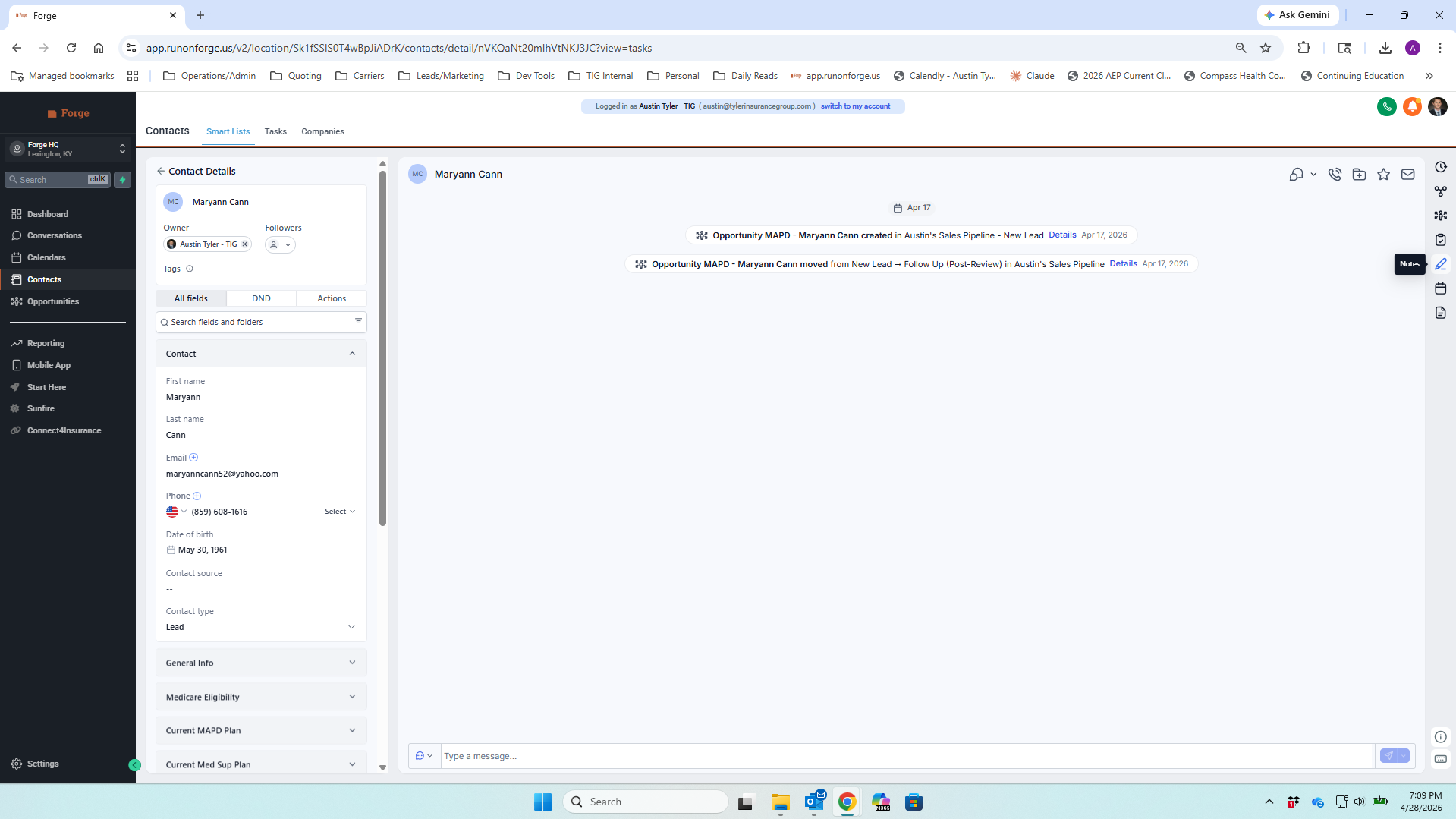
app.runonforge.us / contacts / detail / Maryann Cann
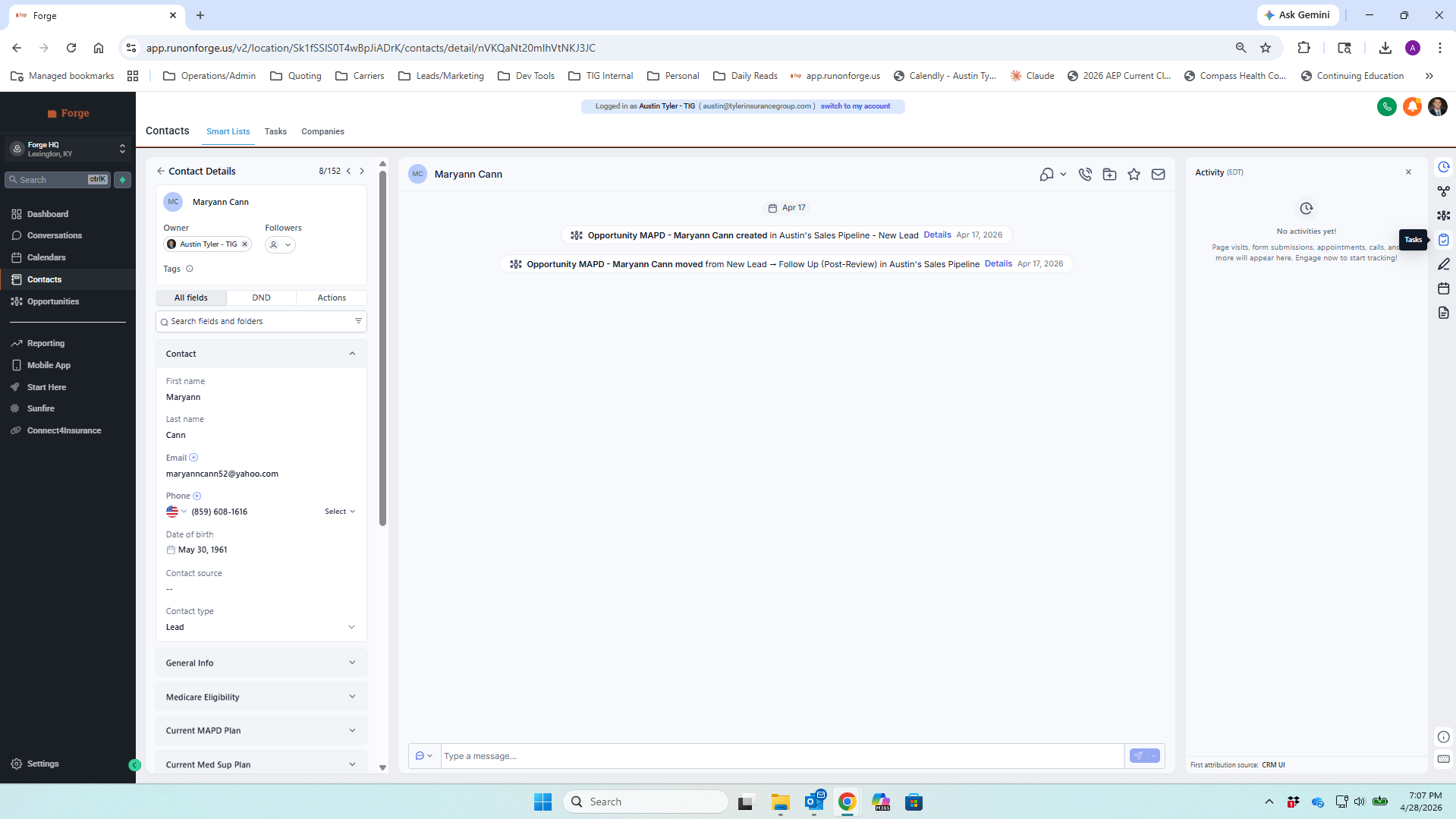
Contact view with the Tasks icon highlighted in the right action rail
Right rail · Tasks
Step 03 / 08 Tasks

This is the end of the notepad.

Right rail, the icon labeled Tasks. I used to do this with a yellow legal pad on my desk. So did you, probably. It worked until it didn't.

Every callback, every follow-up, every promise you made to call someone back lives on the contact, not on a sticky note. You will never wake up wondering who you forgot to call.
Replaces The notepad. The Outlook flags. The "I'll remember" that you didn't.
app.runonforge.us / contacts / detail / Maryann Cann ?view=tasks
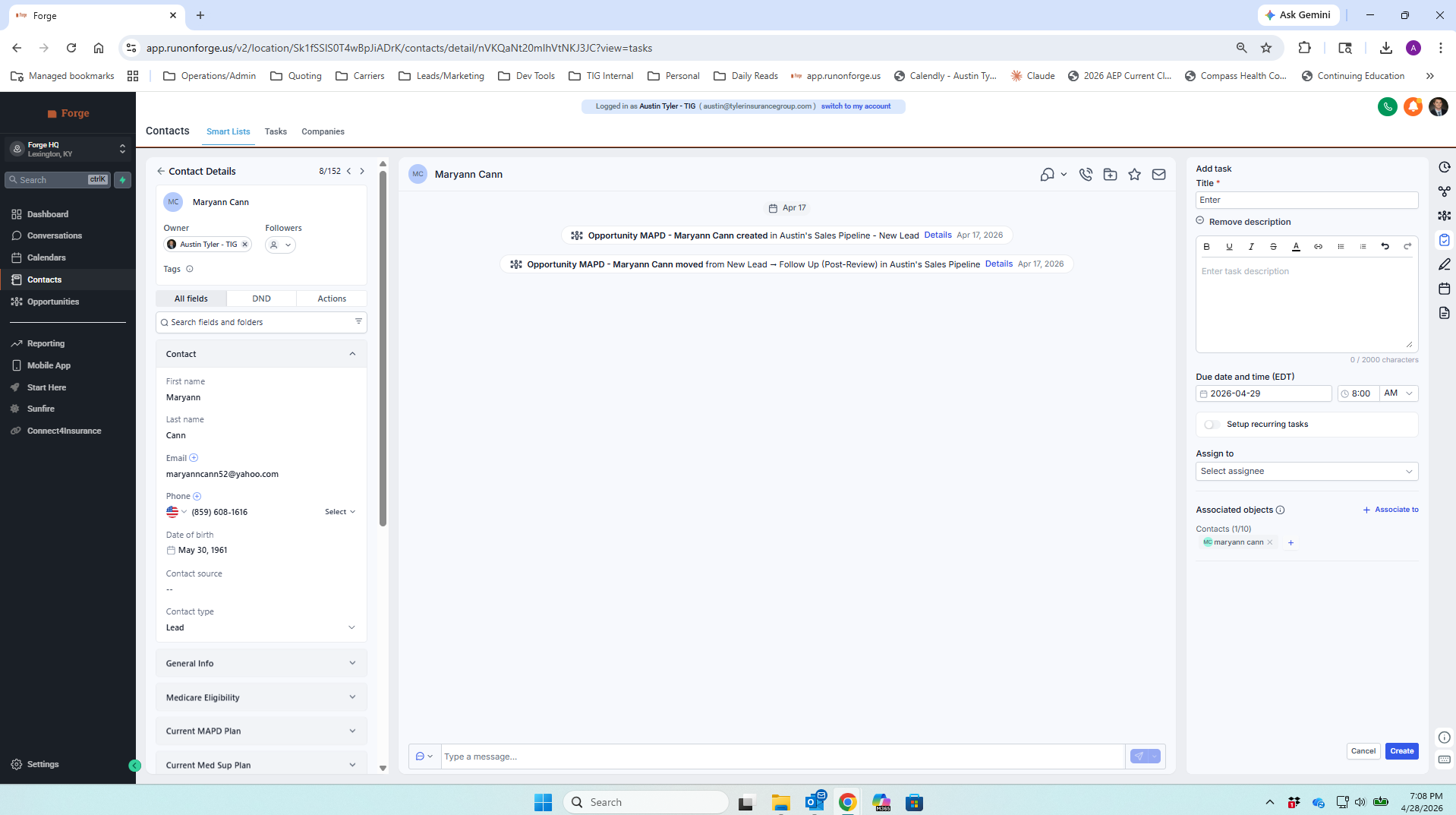
Add task panel showing title, description, due date and time, assign-to, and associated contact fields
Add task · Title, due date, done
Step 04 / 08 Tasks

Title it. Set the due date. Done.

That's the whole thing. Title, Due date and time, save. Description is optional. Assign-to defaults to you. The contact is already linked because you opened it from inside the contact.

Tomorrow morning the system tells you who needs a call. The day after, again. You stop being the task list. The task list is the task list.
Replaces Trying to remember. The 7am scramble through last week's notes. Walking into AEP cold on a renewal you swore you would prep.
app.runonforge.us / contacts / detail / Maryann Cann
Contact view with the Notes icon highlighted in the right action rail
Right rail · Notes
Step 05 / 08 Notes

Pick up where you left off. Every time.

Right rail, Notes. Every conversation has notes. What you talked about. What they cared about. What you promised. Their daughter's name. The carrier they were stuck on.

Next time you call them you do not start cold. You pick up where you left off. They notice.
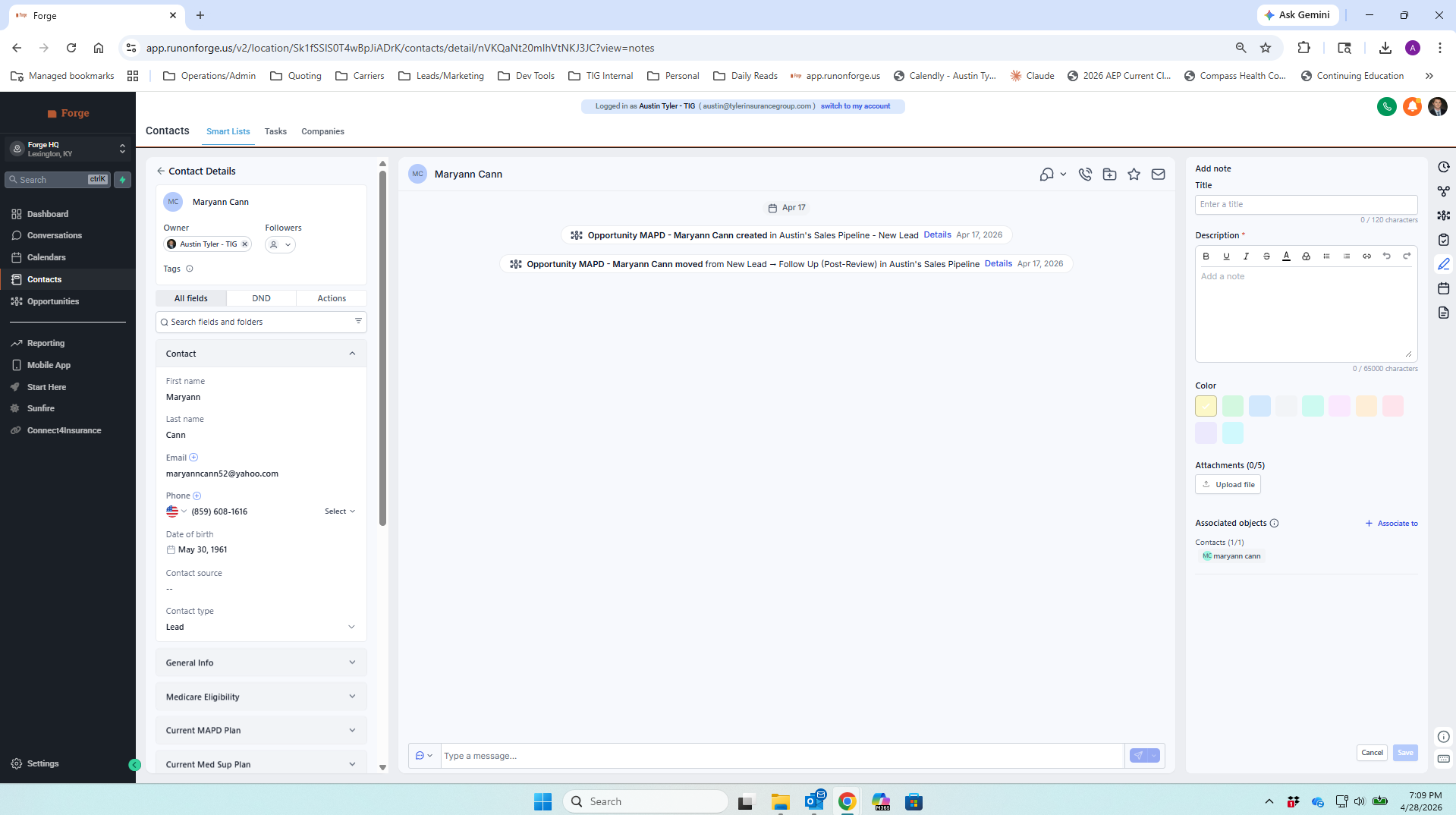
app.runonforge.us / contacts / detail / Maryann Cann ?view=notes
Add note panel with title, description, color tag, and attachment fields
Add note · Title and description
Step 06 / 08 Notes

Two minutes after the call. Write what was said.

Title the note so you can find it later (the topic, not the date). Description is the substance. Two or three sentences is plenty. Color tag if you want to flag it.

The next call, the next agent who picks up the file, the renewal three years from now, they all start informed instead of starting over.
Replaces "What did I tell her last time?" The pause where you bluff. The lost relationship after the third call.
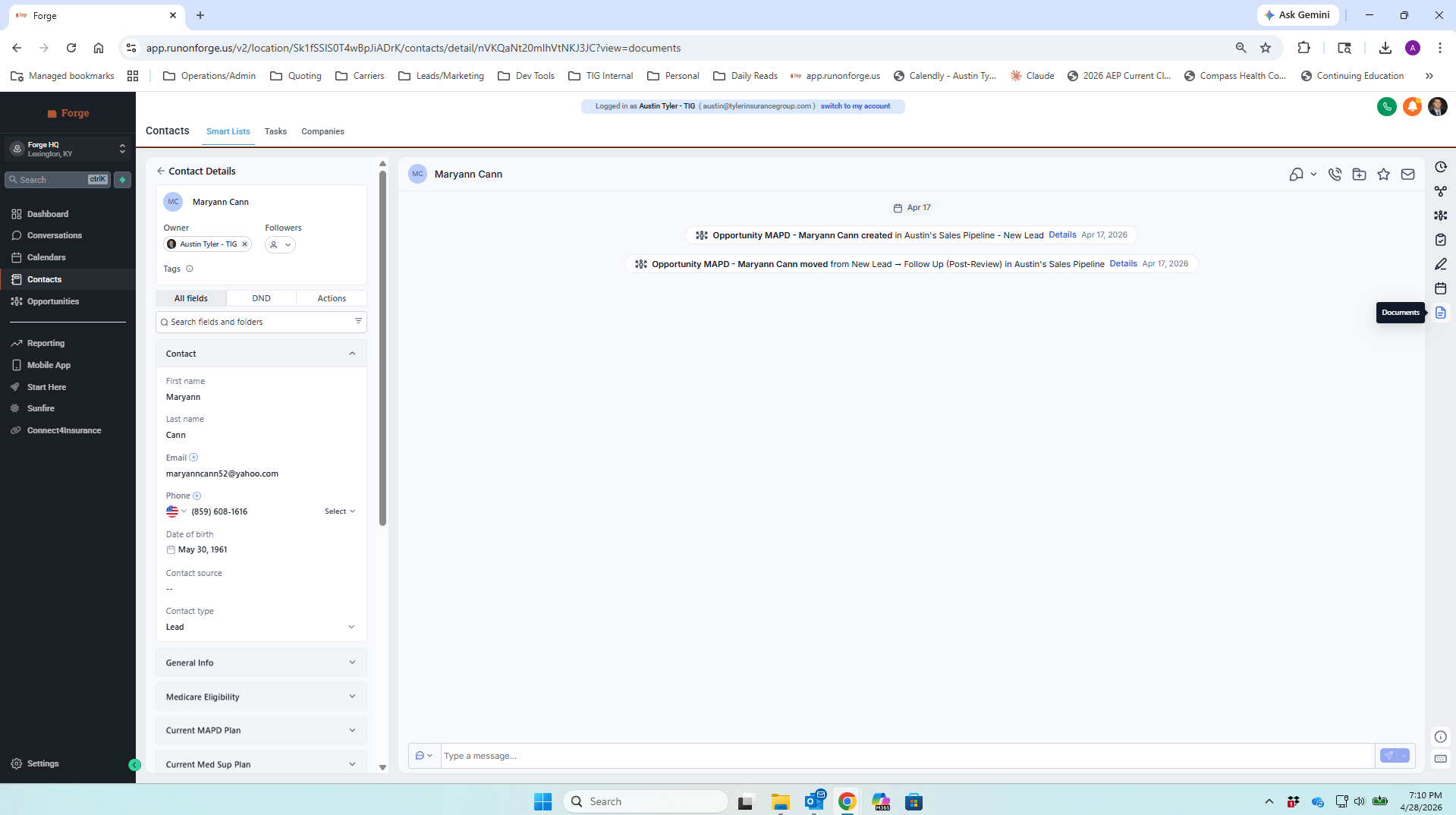
app.runonforge.us / contacts / detail / Maryann Cann ?view=documents
Contact view with the Documents icon highlighted in the right action rail
Right rail · Documents
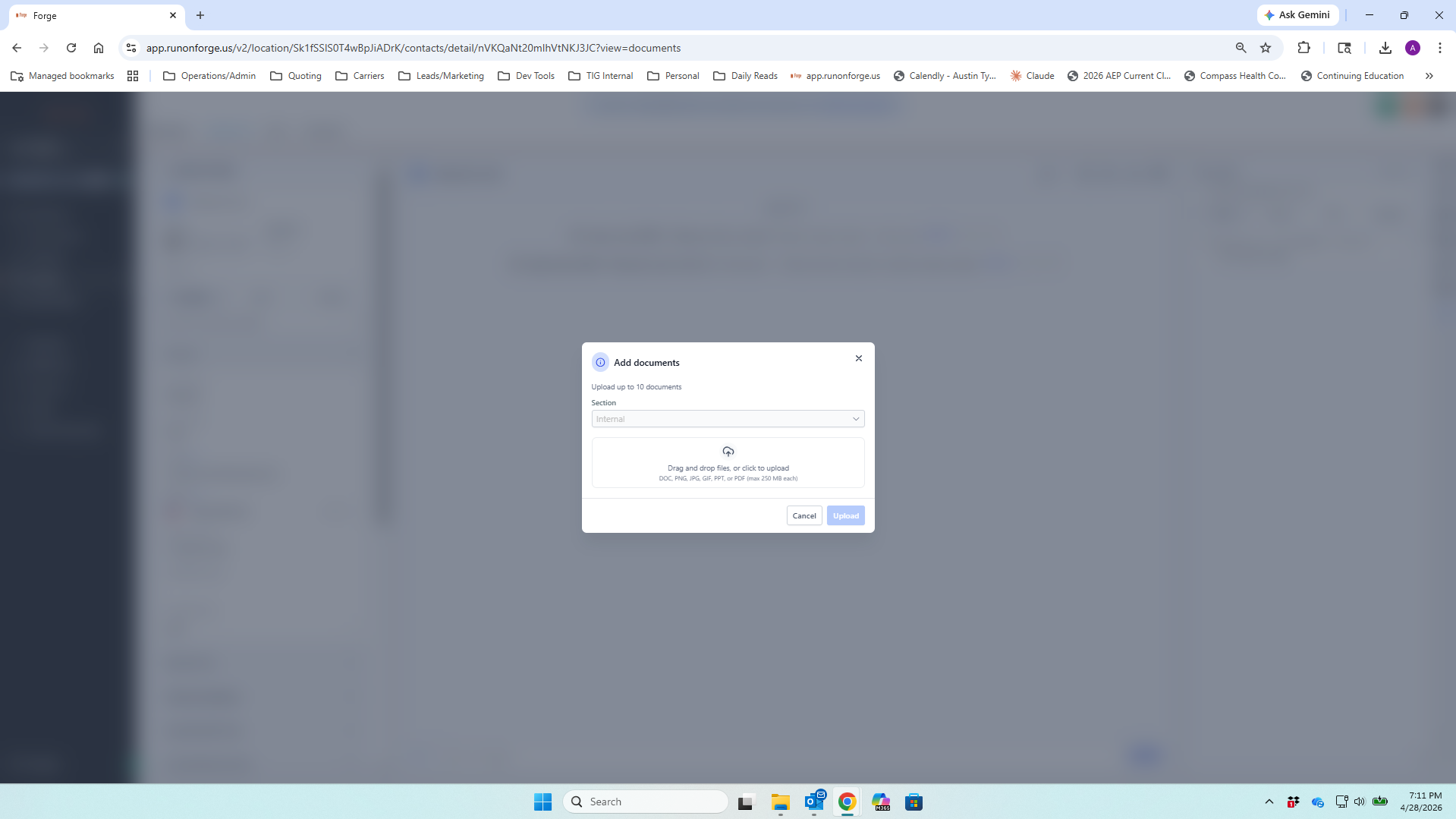
app.runonforge.us / contacts / detail / Maryann Cann ?view=documents
Add documents modal with drag and drop upload area
Add documents · Drag and drop
Step 07 / 08 Documents

Every signed application. On the contact. One click.

Right rail, Documents. Drag and drop, or click. PDF, image, scan, screenshot. It lands on the contact and stays there.

Every signed application. Every SOA. Every quote you ran. Every doc-on-file the carrier sends back. Renewal time, audit time, callback time, you never search high and low for a client's paperwork again. You open the contact. It's there.
Replaces The shared drive. The email folder named "scans." The filing cabinet you have not opened since 2019.
app.runonforge.us / contacts / detail / Maryann Cann ?view=documents
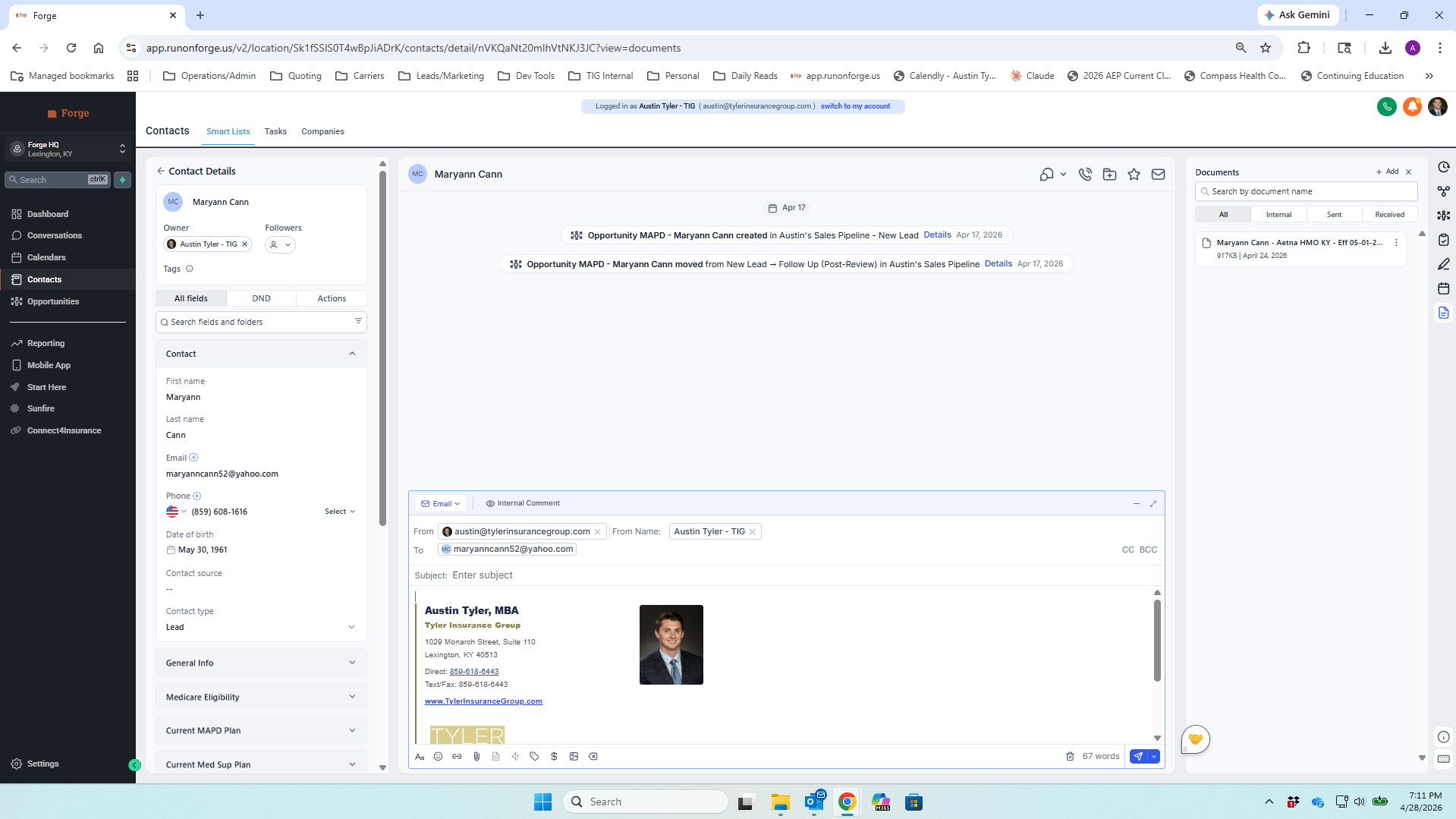
Email composer inside the contact, with Austin Tyler signature loaded and Documents panel showing attachable files
Email composer · Signature loaded · Documents available
Step 08 / 08 Email

Email from inside the contact. Signature, attachments, history. All here.

Compose right on the record. Your signature loads automatically. Their email is already in the To field. Documents from their contact record are one tap away as attachments.

Hit send and the conversation goes on the timeline, in the middle panel from step 2. You never have to remember what you sent or when. Six months later, the next agent opens the contact and sees the same record you do.

Replaces Outlook. The "did I send that?" The forwarded thread you cannot find. The email that never made it to the file.
Walkthrough · Complete

That's the contact view. One prospect. One place.

Tasks, notes, documents, and email all live with the prospect they belong to.

The contact remembers what you said. So you can stop trying to.
Next: Opportunity View
01Contacts list
02Three-panel layout
03Tasks button
04Adding a task
05Notes button
06Adding a note
07Documents
08Send email