Forge
Back to Start Here
§ Start Here · Walkthroughs Opportunity View April 2026
Pipelines. The two motions.
1 / 6
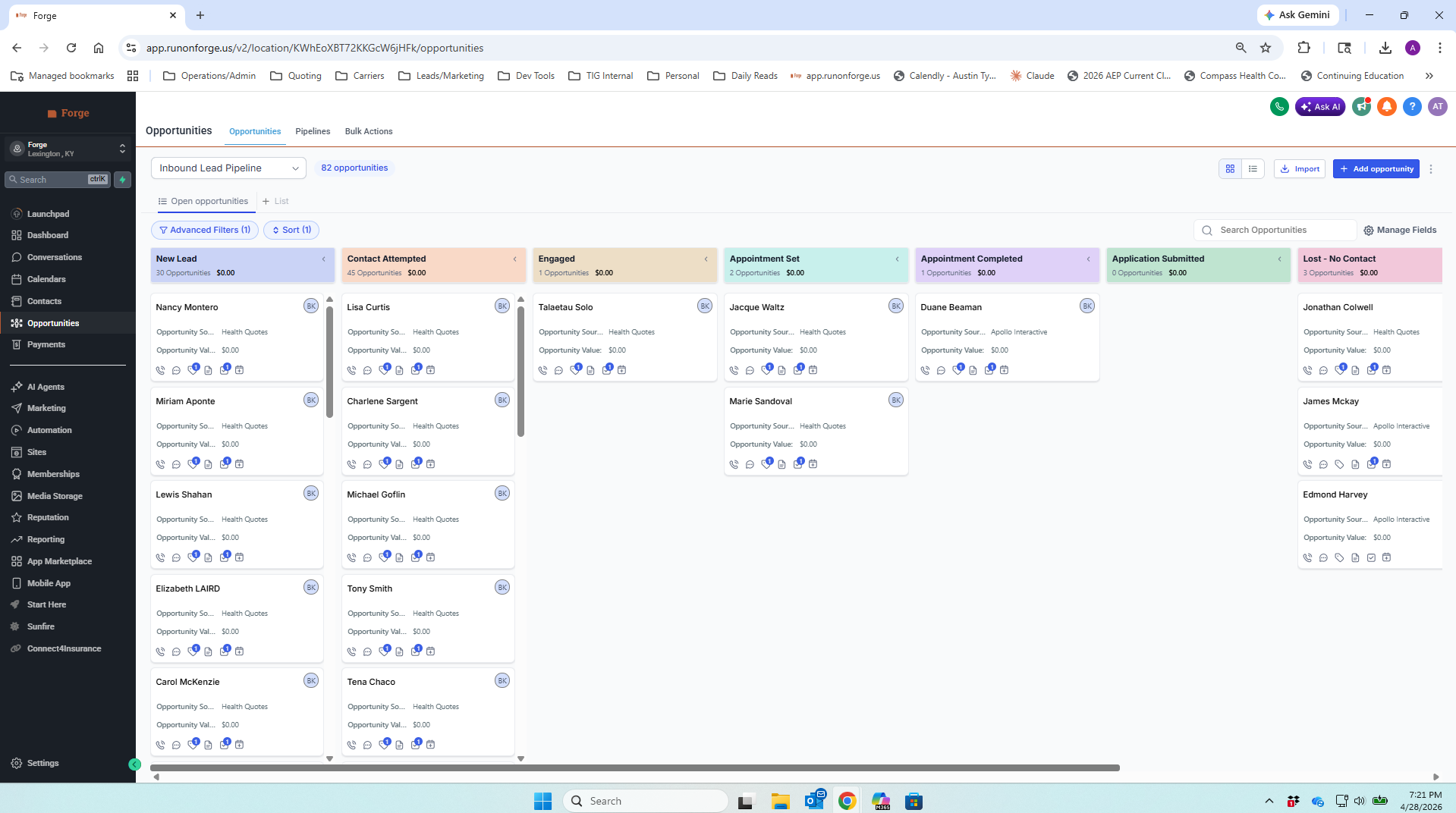
app.runonforge.us / opportunities · Inbound Lead Pipeline
Forge opportunities board, Inbound Lead Pipeline, 82 opportunities, columns: New Lead, Contact Attempted, Engaged, Appointment Set, Appointment Completed, Application Submitted, Lost - No Contact
Forge · Opportunities · Inbound Lead Pipeline
Step 01 / 06 Vocabulary

Two CRM words that trip everybody up. Let's land them now.

Pipeline The line of leads you're working, left to right. Each column is a stage. New Lead enters on the left, Application Submitted exits on the right. Pipeline = your process.
Opportunity One tile on the board. One prospect, one deal in motion, one open path to enrollment. Opportunity = the deal, not the person. The contact is who they are. The opportunity is where they are.

Before this, your leads lived in your head. You knew who you'd called and who you hadn't because you remembered. This is your book of in-progress work, on one screen, in order. Nothing slips.
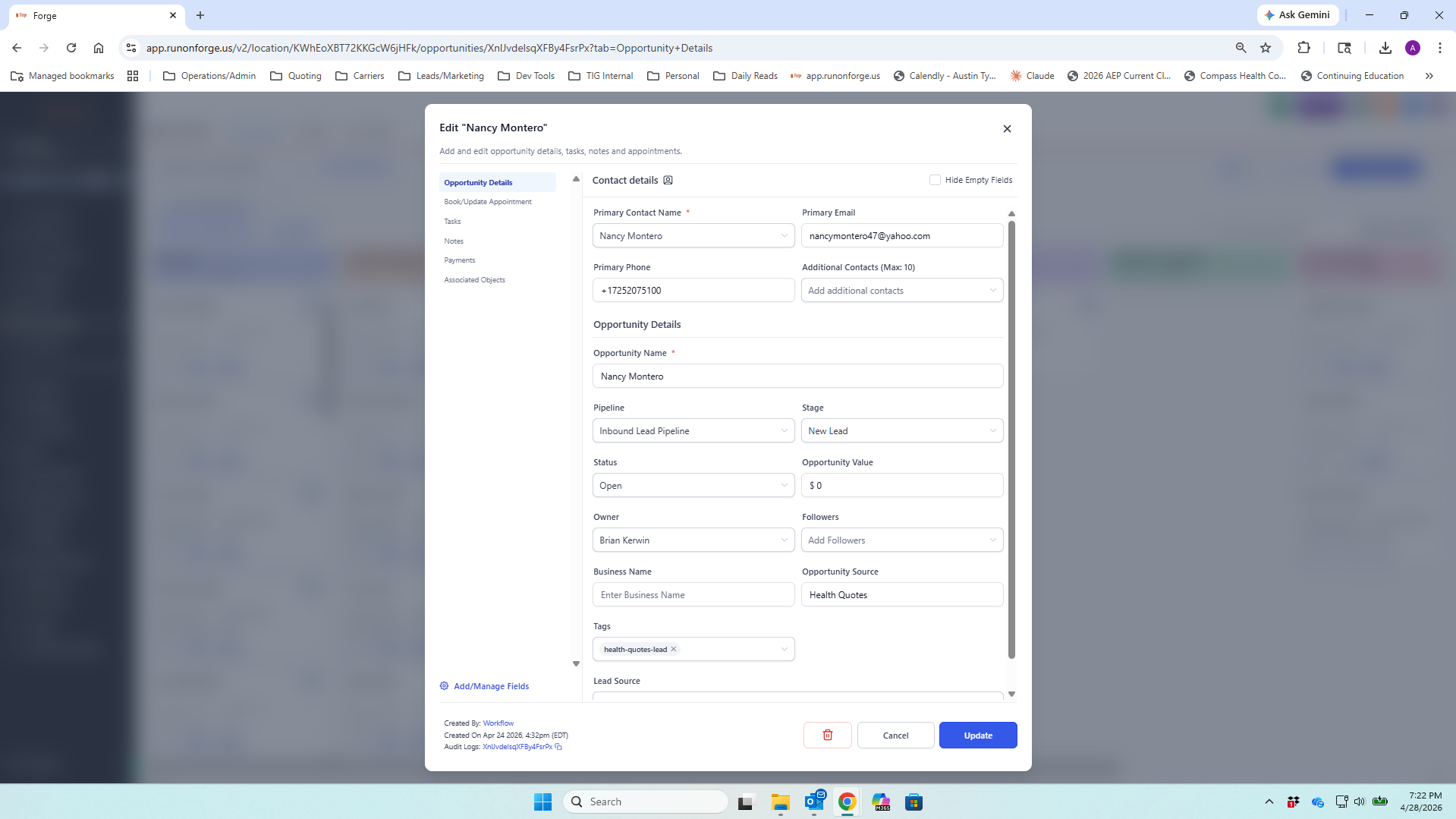
app.runonforge.us / opportunities / Nancy Montero · Edit
Edit drawer for Nancy Montero opportunity, showing contact details, opportunity details, pipeline, stage, status, owner, and left-side tabs for Tasks, Notes, Appointments, Payments, Associated Objects
Edit drawer · Contact details + opportunity details
Step 02 / 06 Inside the tile

An opportunity is a contact with context.

Click any tile and the edit drawer opens. Contact details at the top: who they are. Opportunity details below: where they are. Pipeline, stage, status, value, owner. On the left, the same things you learned on the contact record. Tasks, Notes, Appointments, Payments, Associated Objects.

The contact tells you who. The opportunity tells you where they are in your process. That's the difference. That's why both exist.
Owner field If it says you, this lead is yours to work. If it doesn't, it isn't. Read it before you do anything else.
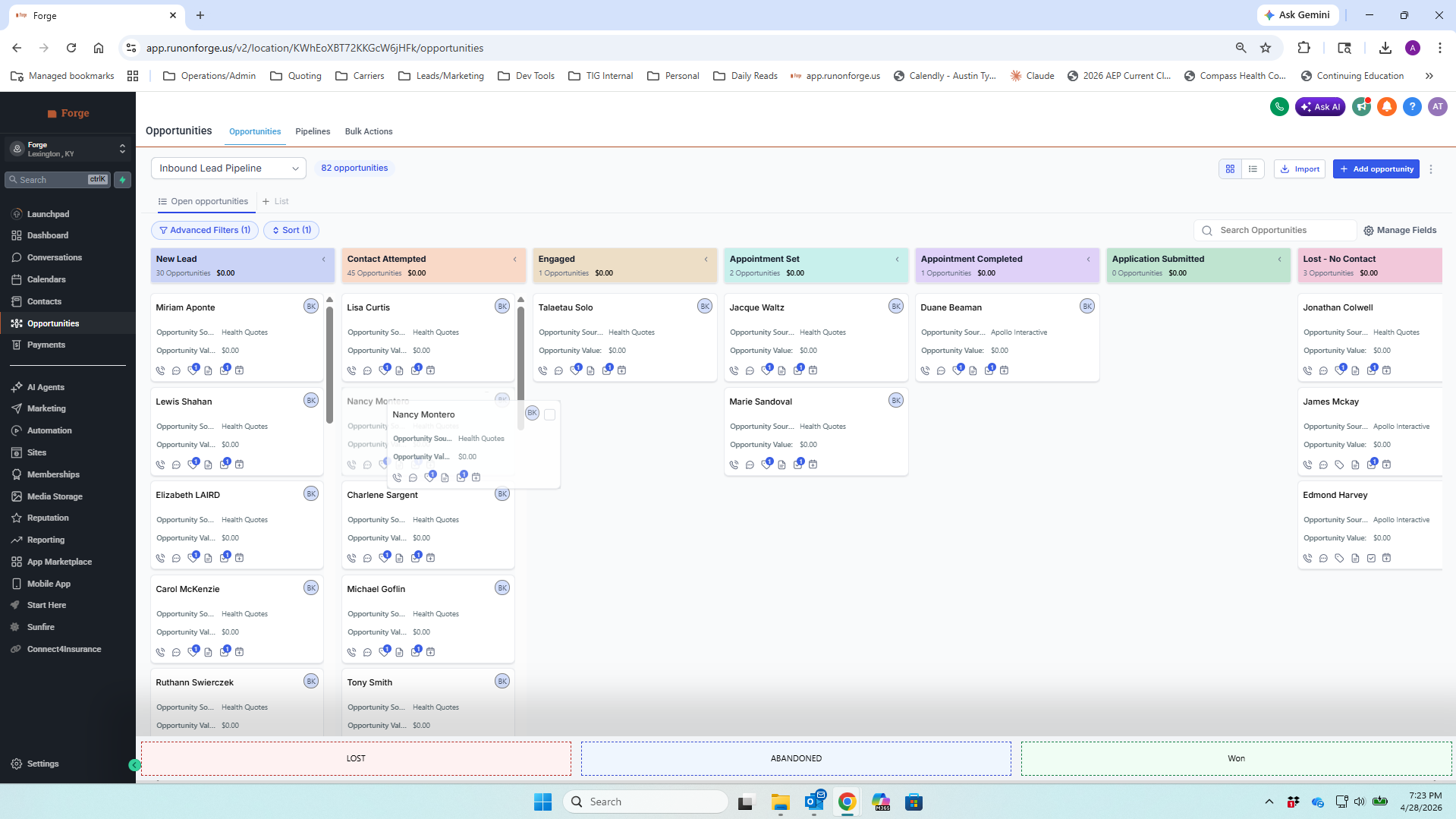
app.runonforge.us / opportunities · drag in progress
Nancy Montero tile being dragged across columns with the Lost / Abandoned / Won row visible at the bottom
Drag in progress · Stage row above, status row below
Step 03 / 06 The two motions

Drag sideways to update the stage. Drag down to close the deal.

Motion 01 · Sideways
Move the stage
After every call, every text, every voicemail, drag the tile to where the lead actually is. Reached them? New Lead becomes Contact Attempted, then Engaged. Got an appointment? Appointment Set. Submitted the application? Application Submitted.
Motion 02 · Down
Close the deal
The row at the bottom is the final answer. Lost, Abandoned, Won. Once you know how the deal ended, drag the tile down. Won goes green. Lost asks you why so you can learn from it. Clean board, no ghosts of leads you forgot to close out.

Two different things, two different motions. Stage is where in the process. Status is how it ended. Mix them up and the board lies to you.
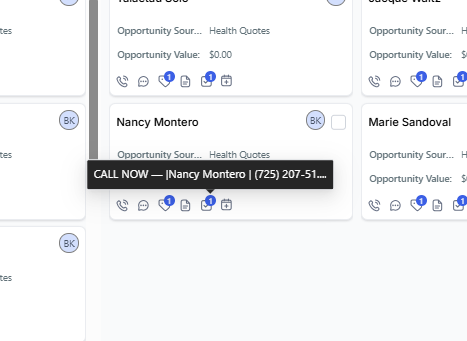
tile · quick actions
Close-up of an opportunity tile with the row of quick action icons at the bottom and a CALL NOW tooltip showing for Nancy Montero
Tile close-up · Call · Message · Email · Note · Task · Appointment
Step 04 / 06 Quick actions

Click, call, drag, next.

Every tile has a row of small icons at the bottom. Call. Message. Email. Note. Task. Appointment. You don't have to open the contact for the simple things. See a tile, hit the phone icon, the call goes out. Disposition the call when it ends, drag the tile to its new stage, move on.

On a heavy lead day you are not opening 30 contact pages. You are working the board. The whole loop happens here.

Replaces Twelve open tabs. The five-click round trip. The lost half-hour you spend hunting through a contact instead of working the next one.
Step 05 / 06 · Three habits

Note what was said. Task what comes next. Document what you signed.

Three words, three habits. Do these every time and the system runs itself. Skip them and the board starts lying to you within a week.

01
Note
After every conversation
Notes are the substance of the call so the next call doesn't start cold.
Examples
Cardiologist is at Baptist Health. Wants a $0 premium plan. Caring for her mother.
02
Task
For anything you owe her
Tasks are the promises you made, captured so you don't forget.
Examples
Call back Tuesday at 10am with three plan options. Send the SOA before Friday. Confirm she got the enrollment confirmation.
03
Document
For anything signed or attached
Documents are paperwork that has to live with the contact. Not your inbox, not your downloads folder.
Examples
SOA. Enrollment application. Quote PDF. ID copy. Carrier confirmation.
If an agent does these three things every time, the system runs itself.

All three are one click from the tile, or one click from inside the opportunity. You learned the buttons on the contact record. This is the rhythm.
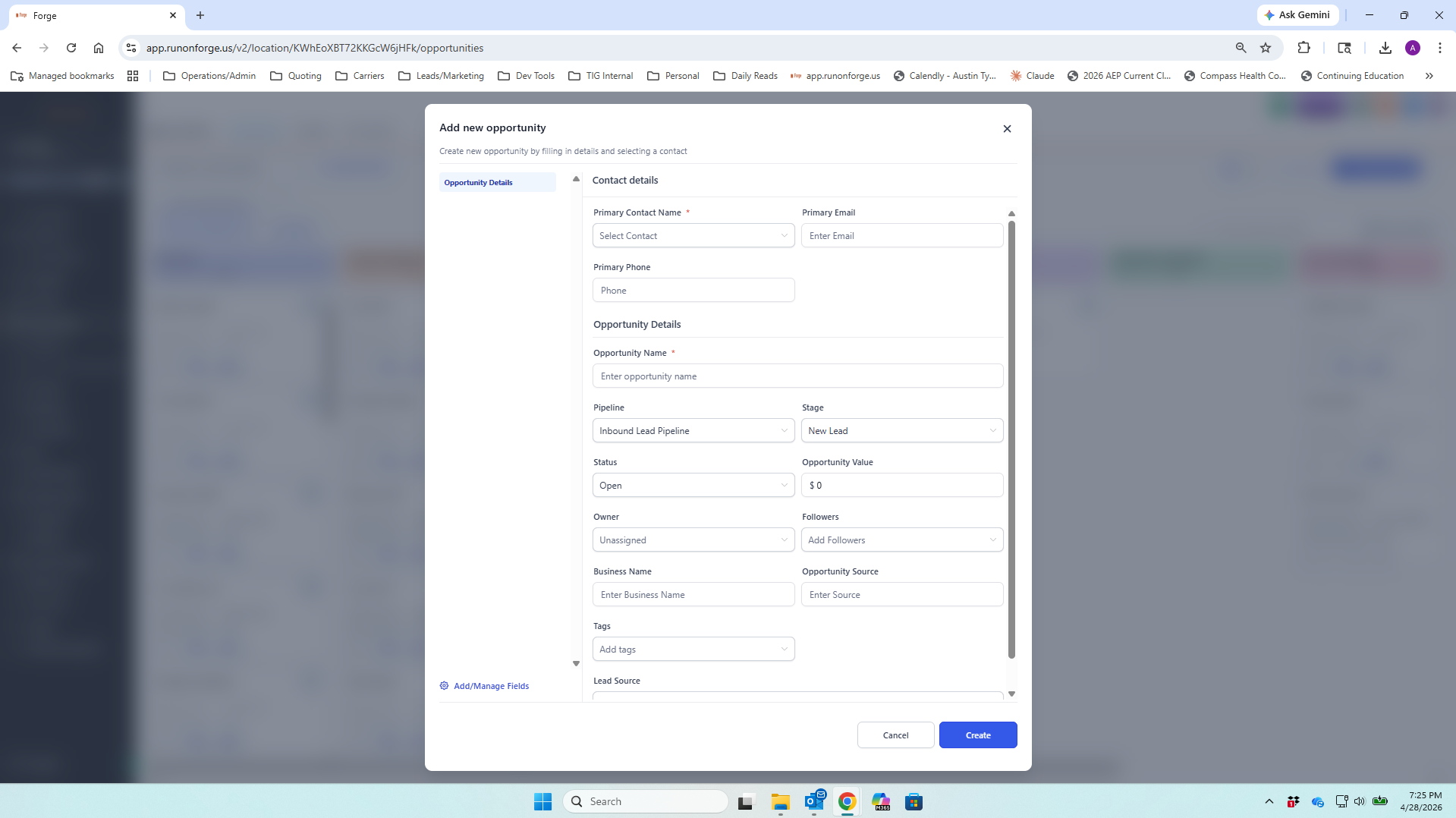
app.runonforge.us / opportunities · Add new opportunity
Add new opportunity modal with contact details, opportunity name, pipeline, stage, status, opportunity value, owner, business name, and source fields
Add new opportunity · Contact, pipeline, stage, owner
Step 06 / 06 Manual add

Most opportunities make themselves. The rest, you add.

Vendor leads come in through the Inbound Lead Pipeline automatically. But the referral your sister called you about, the walk-in at the office, the name your barber gave you, those need a tile. Top right of the board, Add opportunity.

Contact Pick the existing contact, or create a new one inline.
Name Defaults to the contact name. Leave it.
Pipeline Inbound for vendor-style leads. Field Sales for organic.
Stage / Owner / Source Stage is usually New Lead. Owner is you. Source is where it came from. Then Create.
Rule Every name with a chance of becoming a client deserves a tile. Not on the board, not in your process. Not in your process, it slips.
Walkthrough · Complete

That's the foundation.

You've covered the three things every Forge agent has to know: how leads reach you, what a prospect looks like in the system, and how prospects move through your process.

What gets on the board gets worked. What doesn't, doesn't.
01Opportunities board
02Inside the tile
03The two motions
04Quick actions
05Three habits
06Add opportunity